How to lock apps until a certain time on Android
“No Instagram until 5 pm.” “No YouTube after 10.” Locking an app until a set time is one of the most useful rules you can give yourself, and one of the hardest to enforce with Android's own settings. Here is every way to do it, from built-in schedules to a lock that holds until the clock says so.
For a repeating window (every weekday 9 to 12), use a schedule: Android's Focus mode schedule, a Samsung routine, or a focus app's schedule. For a one-off lock that can't be ended early (“nothing until 6 pm today”), use a strict mode. FocusComet's Hard lock shows the exact time you'll be free and blocks Settings until then.
First: one-off or repeating?
“Lock this until 6 pm” can mean two different things, and they need different tools:
- Repeating: the same window every day or on chosen days. Example: block social apps on weekdays from 9 am to 12 pm. You want a schedule.
- One-off: lock it now, until a specific time today. You want a timed session, ideally one you can't cancel.
Method 1: Focus mode schedule (built in)
Go to Settings › Digital Wellbeing & parental controls › Focus mode, choose your distracting apps, then tap Set a schedule and pick the start time, end time and days. During that window the apps are greyed out and their notifications are paused.
Weak spot: “Take a break” and “Turn off until schedule ends” are always available. It is a reminder, not a lock.
Method 2: Bedtime mode (built in, nights only)
Bedtime mode turns the screen grey and switches on Do Not Disturb between set hours. Greyscale makes feeds much less appealing, but the apps still open normally. It is good for winding down and weak at actually locking anything.
Method 3: Samsung Modes and Routines
On Galaxy phones, Settings › Modes and Routines can switch on a mode at a set time. That mode can turn on Focus mode, silence notifications and change the wallpaper. It is flexible, but it inherits Focus mode's easy exit. See also how to hide apps on Samsung.
Method 4: app timers (daily limits, not time windows)
Digital Wellbeing's app timers cap total use per day and reset at midnight. They can't say “not before 5 pm”. They can only say “no more than 30 minutes today”. They are useful alongside a schedule, not instead of one.
Method 5: a focus app schedule
Third-party apps can enforce the window more firmly than Android's own tools. In FocusComet, you attach a schedule to a profile, choosing the days, start time and length.
- Block Mode schedules start automatically at the set time, with no tap needed once permissions are granted.
- Vanish Mode schedules send an alert, which can be full-screen, and the apps disappear with one tap. (Android doesn't let an app switch your home screen silently, so this tap is required.)
- Give each profile its own schedule, so Work, Study and Sleep each start on cue.
Method 6: a hard lock until a set time
For the one-off case, a strict mode is the only option that truly holds. Start a FocusComet session with Hard lock on. Before you start, the session sheet shows the exact end time (“Until 6:00 pm”). Hold the button to lock in, and from then on:
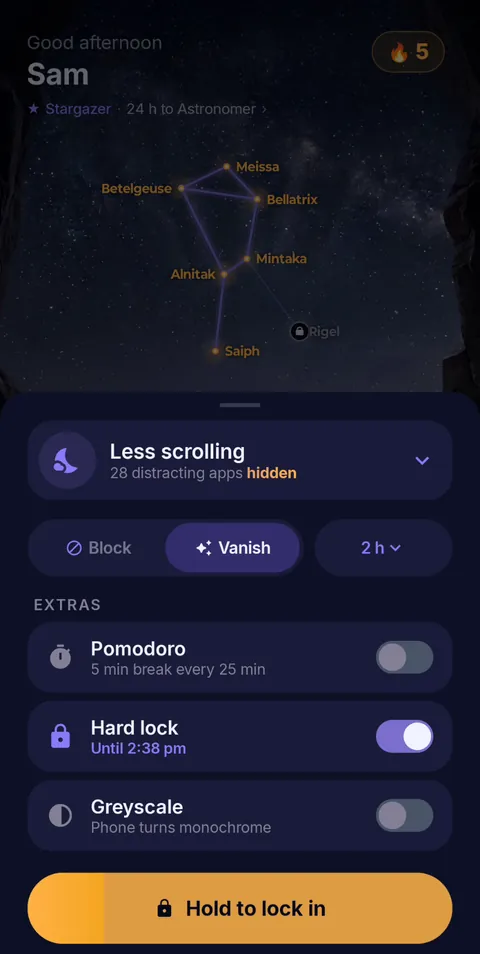 Hold to lock in
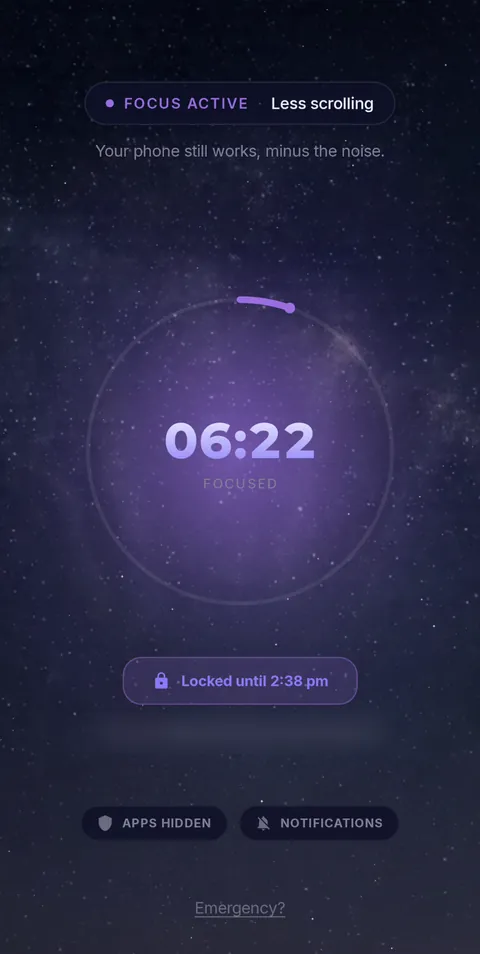 Locked until the timer ends
- there is no End button, only a “Locked until 6:00 pm” label;
- Android Settings is blocked, so you can't change the home app or turn off permissions;
- the apps you allowed keep working.
Scheduled sessions don't use Hard lock. You switch it on yourself for the sessions that matter.
Quick comparison
| Method | Repeats | Easy to override? | Cost |
|---|---|---|---|
| Focus mode schedule | Yes | Yes, one tap | Free |
| Bedtime mode | Yes, nightly | Yes, apps still open | Free |
| Samsung routines | Yes | Yes | Free |
| App timers | Daily limit | Yes, “ignore for today” | Free |
| FocusComet schedule | Yes | Normal session | Free |
| FocusComet Hard lock | One-off | No, locked until the end time | Free to download |
Lock apps until the time you choose
FocusComet hides or blocks distracting apps on a schedule or on demand. Add Hard lock and the apps stay locked until the time on the screen while the apps you allowed keep working.
Get it on Google PlayFrequently asked questions
How do I lock apps until a certain time on Android?
For a repeating window, use a Focus mode schedule in Digital Wellbeing or a schedule in a focus app. For a one-off lock you can't cancel, use a strict mode such as FocusComet's Hard lock, which shows the exact end time and blocks Settings until then.
Can I block an app until a specific time every day?
Yes. Android's Focus mode can be scheduled by day and time, and FocusComet schedules can start a session at the same time on chosen days. Focus mode is easy to turn off. FocusComet's Block Mode schedules start automatically.
Why can I still open the app during Focus mode?
Focus mode is designed as a reminder. It offers “Take a break” and turn-off options at all times. If you need a lock that holds, use an app with a strict mode.
Do app timers lock apps until a certain time?
No. App timers limit total daily use and reset at midnight. They cannot block an app until a particular time of day.
Can a schedule start a Hard lock automatically?
No. In FocusComet, scheduled sessions are normal sessions. You switch on Hard lock yourself when you start a session, so a schedule never locks you in without warning.
Recurring study profiles: class, homework and mock tests
A reusable profile stores the app choice; a schedule decides when the ordinary restriction begins; a strict lock decides whether you can end it. Keep those three controls separate.
- Class: allow the lesson, notes and authentication; hide unrelated feeds.
- Homework: allow the resources for the current assignment and keep essential contact available.
- Mock: test a narrower profile, then deliberately choose a timed manual lock.
In FocusComet, every profile can carry its own schedule. Block Mode schedules start automatically; Vanish Mode schedules send an alert and start with one tap. Scheduled sessions never automatically use Hard lock. For a stricter allowed-app set, see allowlist app blockers.