
Best Allowlist App Blockers for Android: Keep Only Essential Apps
A blocklist asks you to remember every distraction. An allowlist asks a better question: what do I actually need for this session? Everything outside that short list stays out of the way.
Allowlist versus blocklist
| Approach | How you choose | Best use |
|---|---|---|
| Blocklist | Select apps to restrict | A few predictable distractions |
| Allowlist | Select apps that stay available | Study-only phone or focused work |
| Whole-device lock | Restrict nearly everything | Only when essential access is already handled |
The Android shortlist
FocusComet: Allow-only profiles keep the apps you pick while everything else vanishes. This is a visibility-first approach: your study phone should not present a wall of tempting icons.
AppBlock: its official Android documentation describes blocklist and Premium allowlist options alongside schedules and strict settings. It is worth comparing when websites and detailed rule conditions matter.
Stay Focused: compare its current Android blocking rules and strict settings against your exact workflow. Do not assume that a feature with the same label behaves identically across apps or operating systems.
Build an essential-app list that survives real life
- Start with calls, emergency contact access and accessibility tools you rely on.
- Add authentication, campus/work access, travel tickets and maps if the session crosses a journey.
- Add the task: notes, calculator, flashcards, lecture app or question bank.
- Remove anything justified by “maybe”. A feed is not a study resource because it sometimes contains a useful video.
- Run a short normal session, test every essential action, then save the profile.
Keep a separate mock-test profile. The everyday list can include communication; the deliberate mock list can be narrower. Never discover an authentication problem after turning on a strict lock.
Where allowlists fail
An allowed browser can reopen every distracting website. An allowed video app can include lectures and an infinite feed. An allowed messenger can contain family contact and a hundred unrelated groups. Decide which channel is genuinely necessary, and use a separate website blocker where individual sites are the problem.
Schedules, Allow-only and Hard lock are separate switches in FocusComet, and that is a strength: a scheduled study block does not have to be a locked one. Turn on Hard lock only for the sessions you refuse to quit. Set each switch on purpose.
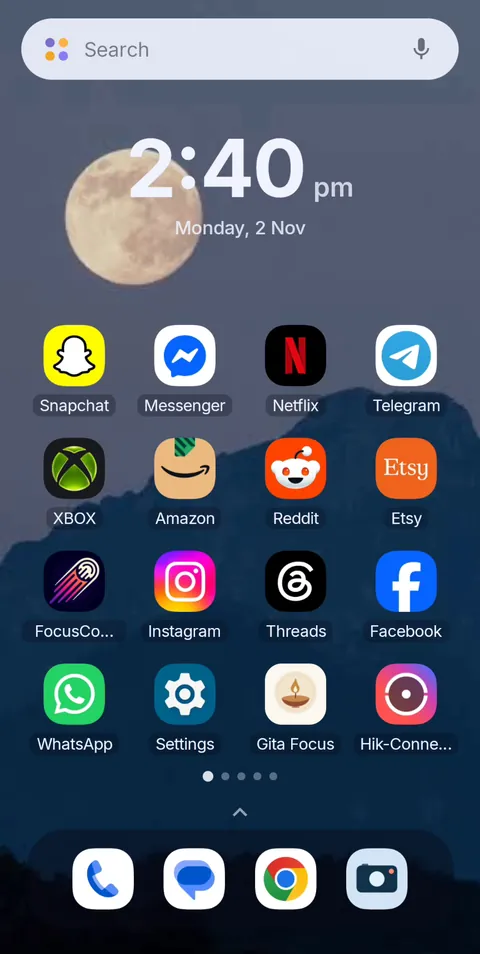 Before
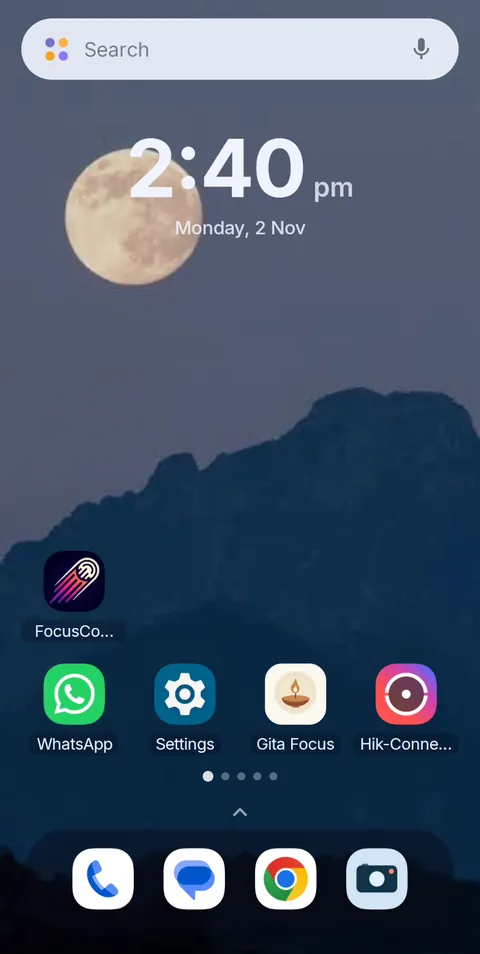 During Vanish Mode
Frequently asked questions
What is an allowlist app blocker?
It flips blocking around: instead of listing every distraction, you list the few apps you need and everything else is restricted for the session.
Can I keep calls while hiding social apps?
Yes. Put your phone app and essential contacts on the list, run one short test session, and you are set.
How do I set up Allow-only in FocusComet?
Create an Allow-only profile, pick the handful of apps you need, such as calls, maps, notes and your study platform, and start a session. Everything else is out of reach until it ends.
Sources and scope
Built-in Android features come from Google’s help pages; app details come from each developer’s official pages. Checked November 2026.