
Strict mode app blockers for Android: how a hard lock works
An app blocker you can switch off in two taps is a suggestion, not a block. That is why “strict mode” is one of the most searched features in focus apps. Here is what it actually means, how the main Android blockers handle it, and how to choose the strength you will really stick with.
Strict mode is a session you can't end early. Apps differ mainly in their escape hatches: PIN, timer, a trusted person, a charger or a support code. FocusComet calls it Hard lock. You hold a button to lock in, the End button disappears, and Android Settings stays shut until the timer ends.
What “strict mode” means in an app blocker
Every blocker has a normal mode: you choose apps, start a timer, and the apps are blocked. The catch is that the person who started the block can also stop it, usually in the moment the craving is strongest. Strict mode removes that option for the length of the session. Depending on the app, it does some or all of the following:
- Removes the stop button until the timer ends.
- Protects the blocker itself, so you can't uninstall it, force-stop it or revoke its permissions mid-session.
- Blocks the system Settings app, which is the usual back door to all of the above.
- Locks the configuration, so you can't quietly remove an app from the block list.
People search for this in different words: “app blocker you can't turn off”, “app blocker that can't be bypassed”, “lock apps until a certain time”. They are all asking for the same thing: a commitment that outlasts the urge.
How the main Android blockers let you out
No serious app makes strict mode totally escape-proof, because real emergencies happen. The difference is how hard the exit is. These are the patterns you will meet:
| Unlock method | How it works | Trade-off |
|---|---|---|
| Timer only | The block lasts until the clock runs out. | The strongest. You need a plan for emergencies. |
| PIN or password | Someone else sets a code you don't know. | Strong if you really don't know it. Weak if you set it yourself. |
| Trusted person | A friend or parent approves the unlock. | Good accountability, but it depends on someone answering. |
| Charger or cooldown | Unlock by plugging in, or by waiting out a delay. | Adds friction rather than a wall. |
| Support code | The developer can end a session if something goes wrong. | A safety net, not an everyday exit. |
Strict Android app blockers compared
| App | Strict feature | What it protects | Best fit |
|---|---|---|---|
| FocusComet | Hard lock | Removes the End button and blocks Android Settings while selected apps are hidden or redirected | Students who still need calculator, notes, calls or flashcards |
| AppBlock | Strict Mode | Protects schedules and blocking rules with multiple unlock approaches | Detailed rules, conditions and website blocking |
| Stay Focused | Strict Mode | Strengthens usage limits and app or website rules | Granular limits and extensive configuration |
| Lock Me Out | Timed lockouts | Scheduled or usage-triggered access restrictions | People who want lockout rules more than a study environment |
| Digital Wellbeing | No comparable hard lock | Pauses chosen apps through Focus Mode | Free gentle limits that remain easy to change |
Feature names are not interchangeable. “Focus mode” can mean a pause button; “strict mode” can mean a delay, PIN or timer; “hard lock” can still include an emergency route. Check the exact escape path before trusting an app with an exam block. Comparison checked 1 November 2026.
AppBlock, for example, offers several of these unlock options in its strict mode. We compared it in detail in AppBlock vs FocusComet. Strict modes are also usually the paid part of a blocker, a pattern we tracked across the free Android blockers.
How FocusComet's Hard lock works
FocusComet started from a different idea: hide the apps instead of blocking them. In Vanish Mode your distracting apps disappear from the home screen, app drawer and dock. In Block Mode the icons stay, but opening one sends you straight back. Hard lock is the strict layer on top of either mode.
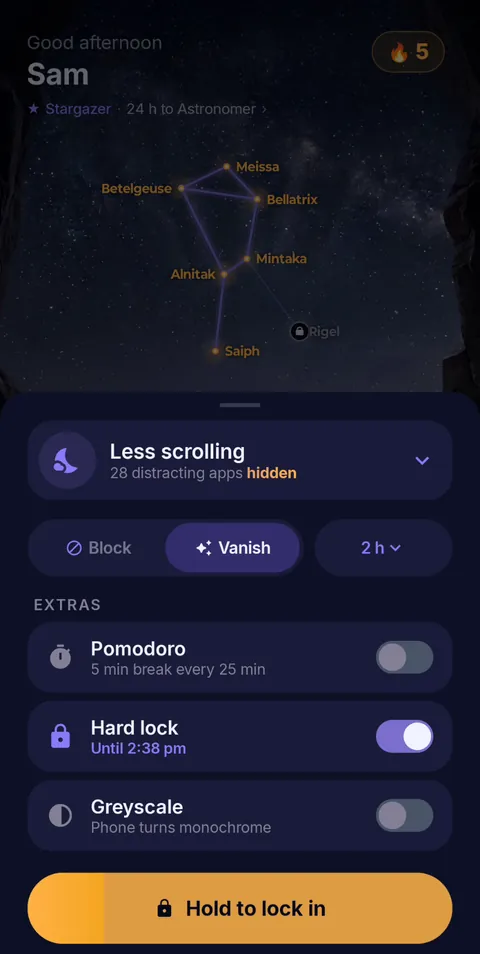 Hold to lock in
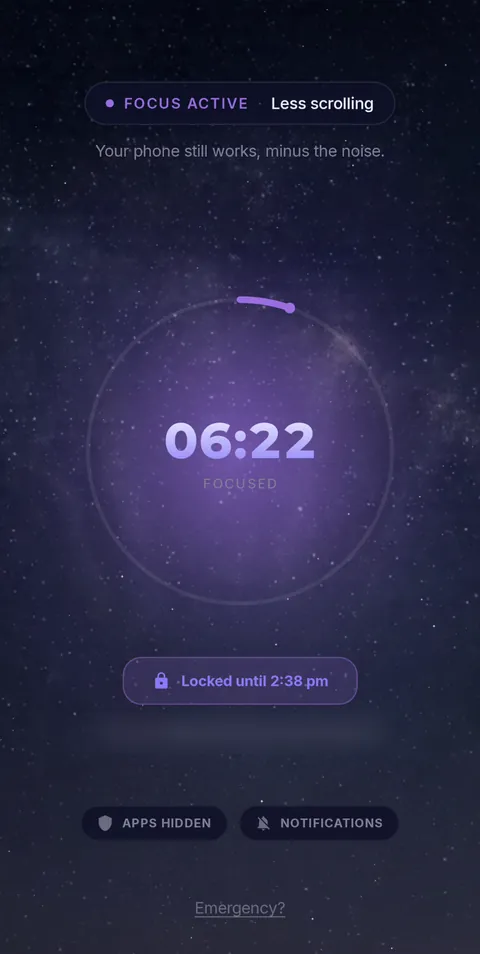 Locked until the timer ends
- Turn on Hard lock in the session sheet and pick your duration. The sheet shows exactly when you will be free, for example “Until 4:30 pm”.
- Hold to lock in. The start button becomes “Hold to lock in” and needs a 1.5-second hold, with a rising vibration, so you can't lock yourself in by accident.
- The End button is gone. The session screen shows a “Locked until” time instead. Pressing Back just leaves the app; the session keeps running.
- Settings stays shut until the locked end time, so the usual escape routes are closed: changing the home app, force-stopping FocusComet or switching off its permissions.
- The apps you allowed still work. Anything you didn't choose to hide or block stays one tap away.
Hard lock needs three Android permissions so it can hold: Usage Access, Display over other apps and Do Not Disturb access. A short “Set up Hard lock” sheet walks you through them the first time. It also asks you to choose FocusComet as your home app for the session.
What if there is a real emergency?
If you need to end the session, tap the quiet Emergency? link at the bottom of the session screen. It shows the support address, support@focuscomet.com, and our team can end the session for you remotely. It is a deliberate, human step rather than a button. That keeps it there for real emergencies and useless for an itch to scroll.
Is strict mode right for you?
Strict mode is powerful, so start small. It works best when:
- You have already tried normal blocking and keep ending sessions early.
- The stakes are clear: an exam, a deadline, a deep-work block, or a night when you want real sleep.
- You pick a duration you can finish. A 45-minute lock you keep beats a 6-hour lock you dread.
If you are new to focus apps, start with a normal session. Hiding the apps already removes most of the pull. Our guide on hiding distracting apps explains why. Add Hard lock for the sessions that really matter.
Honest limits
- Normal sessions can be ended early. Block Mode and Vanish Mode sessions have an End button; Hard lock is the one that doesn't.
- Scheduled sessions don't lock. Automatic schedules start normal sessions. Hard lock is something you choose by hand, each time.
- It blocks apps, not websites. If your distraction lives in a browser, hide the browser too, or pair FocusComet with a website blocker.
- Android only. There is no iPhone version.
- Nothing on Android is unbreakable. A determined person can always wipe a phone. Strict mode doesn't need to be a vault. It only needs to make leaving slower than the craving.
Lock in when it matters: FocusComet
Hide distracting apps with Vanish Mode or block them with Block Mode for free. When a session really counts, turn on Hard lock. There's no End button and Settings stays shut until your timer ends.
Get it on Google PlayFrequently asked questions
What is strict mode in an app blocker?
Strict mode is a blocking session you cannot end early. Depending on the app it hides the stop button, blocks the system Settings app and stops you from uninstalling the blocker or editing the block list until the timer ends.
Is there an app blocker you can’t turn off?
Yes. Strict modes are built for exactly that. FocusComet's Hard lock removes the End button and keeps Android Settings shut until the locked end time. Every serious app keeps some emergency route, such as a support request.
Can I still use other apps during a Hard lock?
Yes. Only the apps you chose to hide or block, plus the Settings app, are off-limits until the timer ends. Everything you allowed stays available.
How do I end a Hard lock in an emergency?
Tap “Emergency?” at the bottom of the session screen and contact support@focuscomet.com. The support team can end the session remotely.
Does strict mode work with schedules?
In FocusComet, scheduled sessions start as normal sessions. Hard lock is chosen by hand for sessions you start yourself, so an automatic schedule never locks you in unexpectedly.
The strict-blocker checklist for studying
Compare the exit conditions, not just the word “strict”. AppBlock documents timer, schedule, approval and other access conditions; Lock Me Out is rule-driven; FocusComet Hard lock is a consciously started timed commitment.
- Can the active block list or schedule be edited?
- Which Android Settings paths does the configuration restrict?
- Does the app protect scheduled blocks, manual blocks or both?
- Can required study apps, calls and authentication remain available?
- What is the emergency route, and does it depend on human support?
See the workflow-specific comparisons for Stay Focused alternatives and Lock Me Out alternatives. Source: AppBlock's Android Strict Mode documentation. This comparison uses documentation, not an independent bypass-resistance test.